
WebP vs AVIF vs JPG vs PNG
Four formats cover almost every image you will ever deal with, and they are genuinely different tools rather than four versions of the same thing. Picking the wrong one usually means a file several times larger than it needed to be, or an image that looks subtly wrong in a way you cannot quite name.
Here is what each is actually for.
The short answer
Photographs going on a website: WebP.
Photographs going anywhere else: JPG.
Logos, icons, screenshots, anything with text or transparency: PNG.
You control the whole website and want the smallest possible files: AVIF, with a WebP fallback.
That covers perhaps ninety percent of decisions. The rest of this explains why, and when the answer changes.
JPG — the universal one
JPG dates from 1992 and is still the most widely supported image format in existence. Every device, editor, printer, upload form and messaging app accepts it without question. That is its single greatest strength and the reason it refuses to die.
It is lossy: it achieves small files by discarding image information your eye is unlikely to notice. That works brilliantly on photographs, which are full of gradual tonal variation, and badly on sharp edges, where it produces faint grey halos. A photo of a landscape compresses beautifully. A screenshot of text does not.
JPG also has no transparency. There is no alpha channel in the format at all, so a transparent area has to become some solid colour — usually white. If you convert a logo with a cut-out background to JPG, you get a white box around it, and no setting will prevent that.
Use JPG when: the image is photographic and the destination is anything other than a web page you control — email, a print shop, an upload form, an older application.
PNG — the lossless one
PNG stores every pixel exactly as given. Nothing is discarded, ever, no matter how many times you open and re-save it. That makes it the right choice whenever the content has hard edges: text, screenshots, diagrams, line art, pixel art, and logos.
It also has proper alpha transparency, including partial transparency, which is why logos and icons live in PNG. An anti-aliased edge fades smoothly into whatever is behind it rather than showing a jagged fringe.
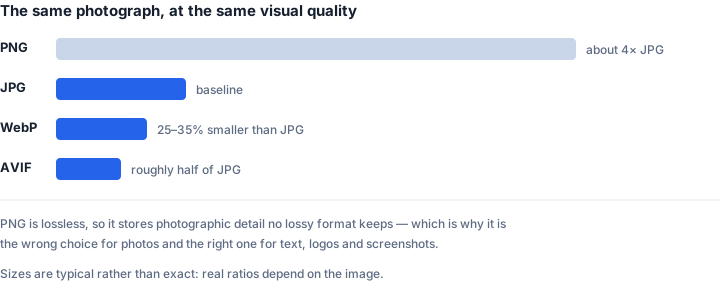
The cost is size. On a photograph, PNG is typically two to five times larger than a JPG that looks identical, because photographic detail is exactly the kind of information lossless compression cannot reduce much. Saving holiday photos as PNG is one of the most common ways people end up with folders that are gigabytes larger than necessary.
One thing worth knowing: there is no such thing as a lower-quality PNG.Any tool offering you a "PNG quality" slider is either resizing the image or quietly converting it to something lossy. The only honest way to make a PNG smaller is to reduce its dimensions.
Use PNG when: the image has text, sharp edges or transparency, or when it will be edited repeatedly and must not degrade.
WebP — the sensible modern default
WebP is Google's format from 2010, and it is the one most people should be using more than they are. It does both jobs: lossy compression for photos, lossless for graphics, and it supports full alpha transparency in either mode.
At equivalent visual quality it is typically 25 to 35 percent smaller than JPG, and meaningfully smaller than PNG for graphics. On an image-heavy page that is the difference between a site that feels instant and one that visibly loads — and page speed feeds directly into search ranking.
Support is no longer a real concern. Every current version of Chrome, Firefox, Safari and Edge displays WebP natively, and has for years. The remaining gap isoutside the browser: plenty of desktop applications, older printers and upload forms still refuse it, which is exactly why people end up searching for a converter after saving an image from a website.
Use WebP when: the image is going on a web page. Avoid it when the file needs to be opened by arbitrary software you do not control.
AVIF — the smallest, with caveats
AVIF is the newest of the four, built on the AV1 video codec. It is the compression winner by a clear margin: often around half the size of JPG at comparable quality, with alpha transparency, wide colour and HDR support built in.
Three caveats keep it from being the automatic answer.
Encoding is slow. Producing an AVIF takes substantially more computation than a JPG or WebP. For a handful of images that is irrelevant; for thousands it is a real cost.
Browser support is good but not universal. Chrome, Firefox and Safari all display AVIF in current versions, but older devices — the ones still in everyday use — may not. For a public website you generally serve AVIF with a WebP or JPG fallback rather than AVIF alone.
Support outside browsers is worse than WebP's. If WebP is awkward in desktop software, AVIF is more so. This is why "AVIF to JPG" is a search people perform: they saved an image from a modern site and nothing on their computer will open it.
Use AVIF when: you control the whole delivery chain and file size is the priority. Otherwise WebP gets you most of the benefit with none of the friction.
A note on HEIC, since your phone probably uses it
HEIC is not really in this comparison — it is a camera format rather than a distribution one. Apple devices have saved photos as HEIC since iOS 11 because it stores roughly the same quality in half the space of a JPG.
The trouble is that almost nothing outside the Apple ecosystem reads it. Windows applications, older editors, web upload forms and print services frequently reject HEIC outright, which is why so many people find themselves converting iPhone photos before they can do anything useful with them.
If it is a recurring nuisance, you can change it at source: on iPhone, open Settings, then Camera, then Formats, and choose "Most Compatible". New photos will be saved as JPG.
Choosing by situation
Photos to email or message someone. JPG, compressed to a sensible size. Universal, small, and nobody will have trouble opening it.
Photos for your own website. WebP, resized to the largest size it will actually display at. Serving a 4000-pixel image into an 800-pixel slot is among the most common causes of a slow page.
A logo or icon. PNG, unless it is going on a web page you control, in which case WebP is smaller and keeps the transparency.
A screenshot. PNG. Text in a JPG picks up visible artefacts around the letters and looks slightly dirty at full zoom.
Something you will keep editing. PNG, or your editor's native format. Every lossy save compounds the previous one.
An archive of originals. Keep whatever the camera produced. Convert copies, never the originals.
Two mistakes worth avoiding
Converting to PNG to "improve quality". Converting a JPG to PNG cannot restore detail that JPG compression already discarded. It preserves what remains perfectly and produces a much larger file. The damage happened at the first save and is permanent.
Re-compressing an already-compressed image. Each lossy save discards a little more. Converting JPG to WebP to JPG again leaves you with visibly worse output than a single conversion from the original would have. Always start from the best copy you have.
The one-line version
Photos to the outside world go as JPG. Photos on your own site go as WebP. Anything with text, edges or transparency goes as PNG. AVIF when you control everything and want the smallest files. HEIC is what your phone gives you, not what you send anyone.
Convert between them
- PNG to WebP — smaller web images, transparency kept
- JPG to WebP — roughly a third smaller at the same quality
- WebP to JPG — for software that will not open WebP
- AVIF to JPG — for the images nothing on your computer opens
- HEIC to JPG — iPhone photos, made universal