
How to get a photo under 5MB for email
You attach a few photos, press send, and the email bounces back. Or worse, it appears to send and quietly never arrives. Attachment limits are one of the last places where the internet still feels like 2004.
The fix takes about a minute once you know which lever to pull — and there are only two.
The limits are smaller than they say
Gmail advertises a 25 MB attachment limit. Outlook.com is 20 MB. Corporate Exchange servers are often configured lower, sometimes 10 MB.
But those numbers describe the encoded message, not your file. Email cannot carry raw binary data, so attachments are converted to text using an encoding called base64 — which inflates them by roughly a third.
A 25 MB limit realistically means about 18 MB of actual files. A 20 MB limit means around 15 MB.
There is also the receiving end. Your provider might accept 25 MB while theirs caps at 10, and the message fails after you have sent it. Aiming well under any stated limit is not caution, it is realism.
The two levers
A photo's file size is governed by two things: how many pixels it contains, and how aggressively those pixels are compressed. Resizing changes the first. Compressing changes the second. They work differently and it is worth knowing which to reach for.
Resizing: usually the right first move
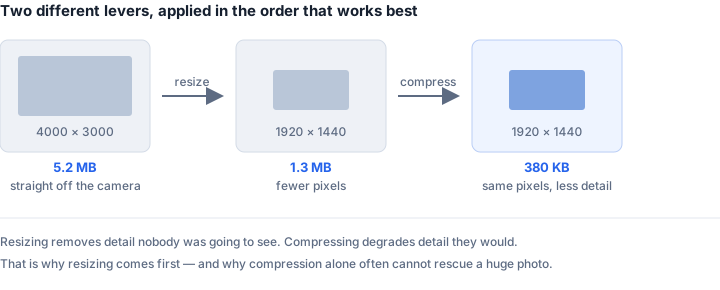
A modern phone camera produces images around 4000 pixels wide. A laptop screen is 1920 pixels wide. Nobody viewing your photo in an email is seeing more than a fraction of the detail you sent — the software throws most of it away to fit the screen.
Halving the dimensions of an image quarters its pixel count, and the file size drops roughly in proportion. Going from 4000 pixels wide to 2000 typically takes a photo from 5 MB to somewhere near 1.5 MB, and on any normal screen it looks identical.
This is why resizing should usually come first: it removes data nobody was going to see, rather than degrading data they were.
Compressing: for when resizing is not enough
Compression keeps the dimensions and discards fine detail instead. JPG is very good at this — a photo saved at 90% quality is visually indistinguishable from the original and often half the size, because it is discarding variation your eye does not register.
Push further and you start to see it: soft patches in areas of subtle texture, faint blocky squares around high-contrast edges, halos around text. Somewhere below about 60% quality it becomes obvious.
Together they are far stronger
The two multiply. Resize to 1920 pixels and compress at a moderate quality, and a 5 MB photo commonly lands under 400 KB with no visible loss at the size anyone will view it.
This is worth internalising: compression alone often cannot rescue a very large photo. A 24-megapixel image simply contains too much data to fit under a tight limit at any quality that still looks acceptable. Reduce the dimensions and the same target becomes easy.
A practical recipe
For photos going in an email, this works nearly every time:
Resize the longest edge to 1920 pixels. That is full-HD, sharper than most people's screens will display it, and plenty for printing at postcard size.
Save as JPG at a balanced quality. Not maximum — the difference is invisible and the file is twice the size.
Aim for under 1 MB per photo. Ten photos then comfortably fit any limit, and the recipient can actually download them on a phone.
If the recipient specifically needs full resolution — a printer, a designer, an insurance claim — do not do any of this. Use a file transfer service and send the originals.
Three things that do not work
Zipping the photos. Understandable instinct, no effect. JPG is already compressed, and ZIP cannot meaningfully compress data that is already compressed. A zip of ten photos is about the size of ten photos, plus a little overhead. It bundles them tidily; it does not shrink them.
Renaming or changing the extension. Renaming .png to.jpg changes the label, not the contents. The file is the same size and now also lies about what it is, which makes some software fail in confusing ways.
Converting a JPG to PNG to "clean it up". This makes the file considerably larger. PNG is lossless and stores everything, which is the opposite of what you want here.
Send a link instead when it makes sense
For more than about ten photos, or when the originals genuinely matter, attachments are the wrong tool. Gmail offers Drive links above 25 MB automatically, and dedicated transfer services handle large batches without either party fighting a limit.
Worth being aware of the trade: a link means the files live on someone else's server for as long as the link exists. For holiday photos that is fine. For documents you would rather not have sitting in cloud storage, resizing and attaching keeps the file within the email itself.
The short version
Resize first, compress second, aim for under 1 MB per photo, and do not bother zipping. If the recipient needs the originals at full resolution, stop trying to make them fit and send a link instead.
Tools for this
- Compress Image — set a target size and it finds the best quality that fits
- Resize Image — exact dimensions, batch supported
- HEIC to JPG — if the photos came off an iPhone